AEShot

AEShot Sync Help

Profiles, plans, schedules and archives, step by step.

Getting started

Install

Open the disk image you downloaded and drag AEShot Sync to the Applications folder.

Run the installer you downloaded. It installs AEShot Sync for your account, without administrator rights, and adds it to the Start menu.

Choose the package for your Linux under Download on the AEShot Sync page and install it with the command shown there.

If Edge or Windows warns because the installer isn’t code-signed yet, here is what to do.

First launch

AEShot Sync opens with an empty list. Click New Profile to set up your first pair of folders.

AEShot Sync opens with an empty list. Click New profile to set up your first pair of folders.

Permissions

AEShot Sync needs no special permissions: it may use a folder once you choose it. macOS asks once whether it may send notifications, when you first save a profile with a schedule.

AEShot Sync needs no special permissions. It uses the folders you choose for a profile.

Where to find it

AEShot Sync has a window and an icon in the menu bar. The icon’s menu shows what is happening and runs Analyze and Synchronize. Closing the window quits the app, unless you turn on Keep running in the menu bar when the window is closed in Settings.

AEShot Sync has a window and an icon in the notification area. The icon’s menu shows what is happening and runs Analyze and Synchronize. Closing the window quits the app, unless you turn on Keep running in the notification area when the window is closed in Settings.

AEShot Sync has a window and an icon in the system tray. The icon’s menu shows what is happening and runs Analyze and Synchronize. Closing the window quits the app, unless you turn on Keep running in the system tray when the window is closed in Settings.

Updates

AEShot Sync looks for a new version about a minute after it starts, then once a day. When one is out, a window shows what’s new. Click Update: it downloads the update, checks its signature, installs it and opens again, and your settings and profiles stay. A critical update reminds you until it’s installed. To look now, choose Check for Updates… in the AEShot Sync menu, under About AEShot Sync, or in its menu bar menu, or click Check Now in Settings › General › Updates, which also has Check for updates automatically.

AEShot Sync looks for a new version about a minute after it starts, then every hour. When one is out, a window shows what’s new. Click Update: it downloads the update, checks its signature, installs it and opens again, and your settings and profiles stay. A critical update reminds you until it’s installed. To look now, choose Check for Updates… next to About AEShot Sync in the menu of its icon in the notification area or in the … (More) menu, or click Check Now in Settings › General › Updates, which also has Check for updates automatically. AEShot Sync 1.1.0 to 1.1.3 can’t update themselves: install 1.1.4 or later once from the AEShot Sync page. In 1.1.2 and 1.1.3, the Download button of the failure notice opens the installer.

On Linux, AEShot Sync looks for a new version about a minute after it starts, then once a day. When one is out, a window shows what’s new. Click Update: it downloads the update, checks its signature, installs it with your system’s package manager (apt, dnf, zypper or pacman) after asking for your password, and opens again; your settings and profiles stay. A critical update reminds you until it’s installed. To look now, choose Check for Updates… in the … (More) menu next to About AEShot Sync, or in its tray menu, or click Check Now in Settings › General › Updates, which also has Check for updates automatically. A copy not installed from the packages on aeshot.com only shows Download. Versions before 1.1.1 can’t do this yet: install the newer package from the AEShot Sync page once.

Installation ID and reviews

Settings › General shows this installation’s Installation ID with Copy, and Write a Review on aeshot.com opens the review page with it filled in. Reviews need Count this installation turned on. How reviews work

You can also write one in the app: choose Write a Review… in the AEShot Sync menu.

You can also write one in the app: choose Write a Review… in the icon’s menu or under More.

Step by step

Create a profile

A profile remembers two folders and how to keep them in step.

Create a profile
  1. Choose File › New Profile (⌘N), then click Edit Profile in the toolbar.
  2. Click + next to Profiles (Ctrl+N). The profile settings open.
  3. Type a Profile name.
  4. Under Folders, click Choose… next to Source and pick the folder to copy from. Do the same for Destination.
  5. Under Folders, click Choose next to Source and pick the folder to copy from. Do the same for Destination.
  6. Under Mode, pick Update or Mirror.
  7. Click Save.

Analyze first, then synchronize

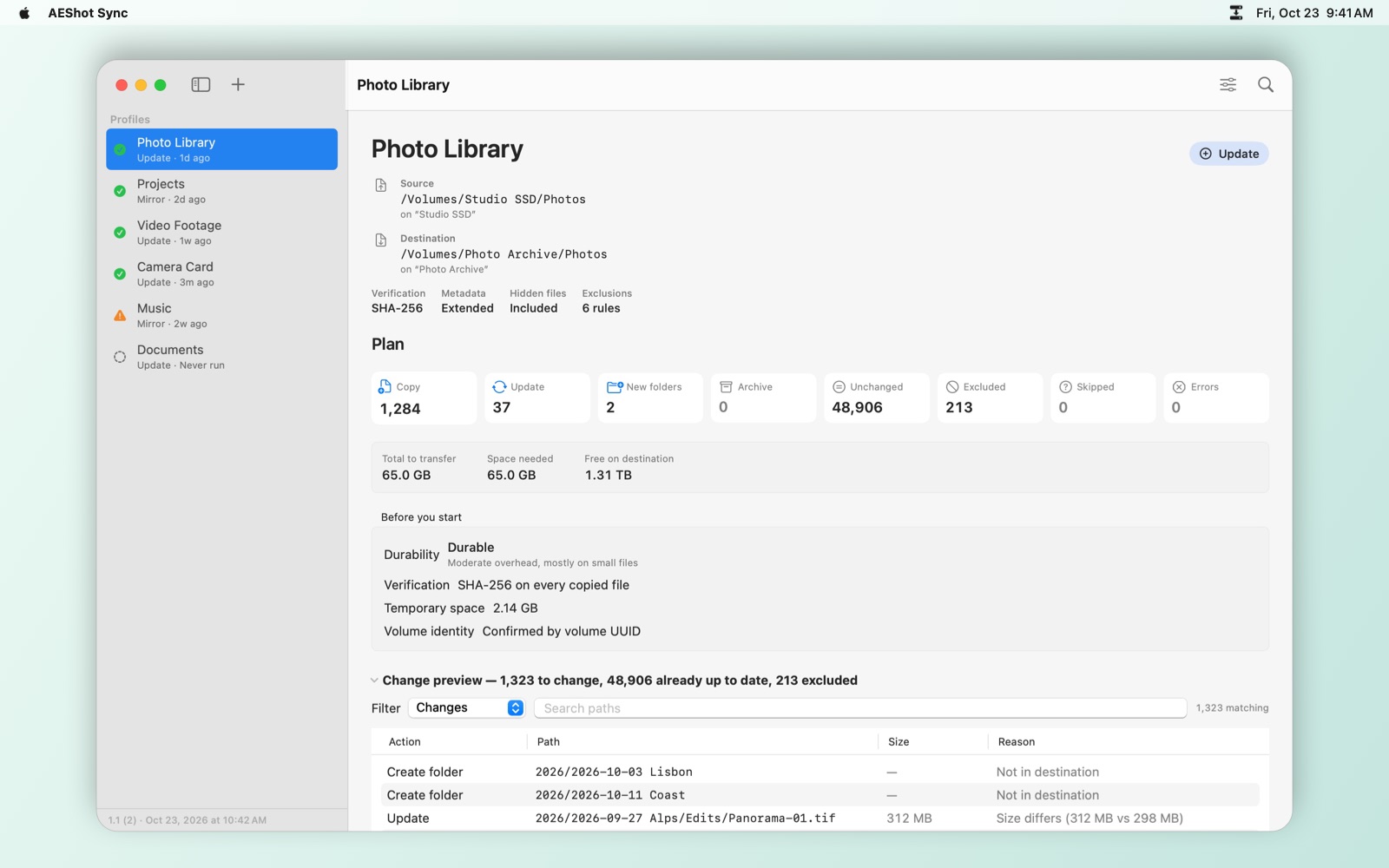
Analyze only reads. Nothing is written to the destination until you have seen the plan.

Analyze first, then synchronize
  1. Select the profile in the sidebar.
  2. Click Analyze (⇧⌘A).
  3. Click Analyze (F5).
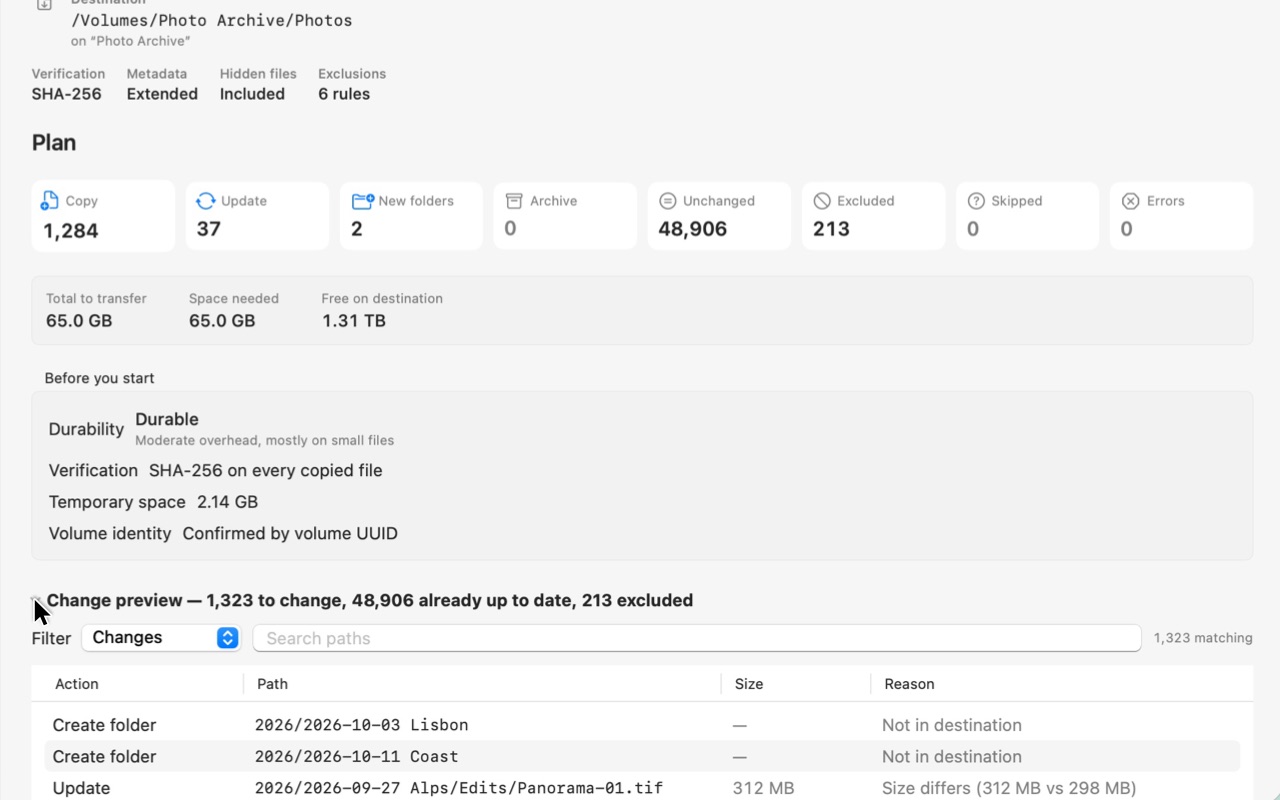
  4. Read the plan: what is new, what changed, what moves to the archive, and the notes under Before you start.
  5. Click Synchronize (⌘R).
  6. Click Synchronize (Ctrl+Enter).
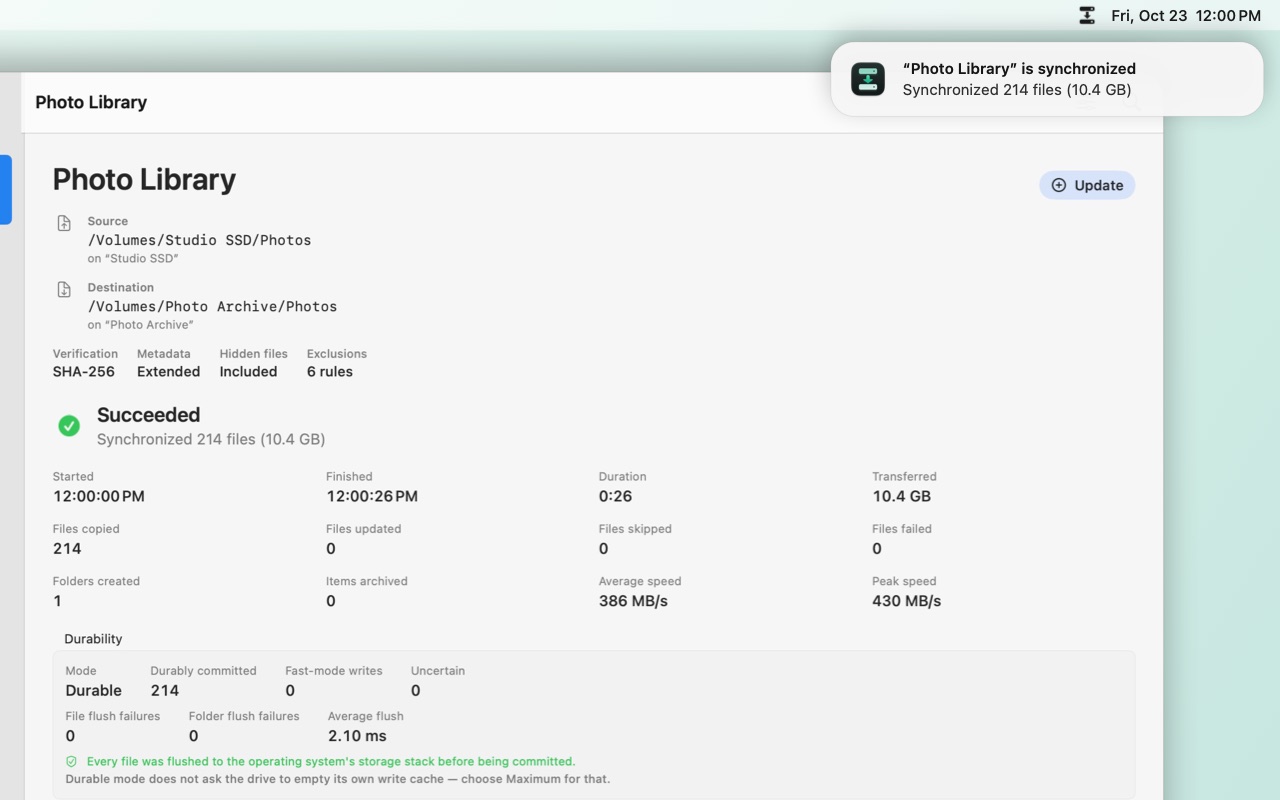
  7. When it is done, Reveal Destination shows the copies and Open Log the run log.
  8. When it is done, Show destination in File Explorer shows the copies and Open log the run log.
  9. When it is done, Show destination in File Manager shows the copies and Open log the run log.

Choose Update or Mirror

Update copies new and changed files and never removes anything from the destination. Mirror makes the destination match the source.

Choose Update or Mirror
  1. Select the profile and click Edit Profile in the toolbar.
  2. Select the profile and click Edit profile (Ctrl+E).
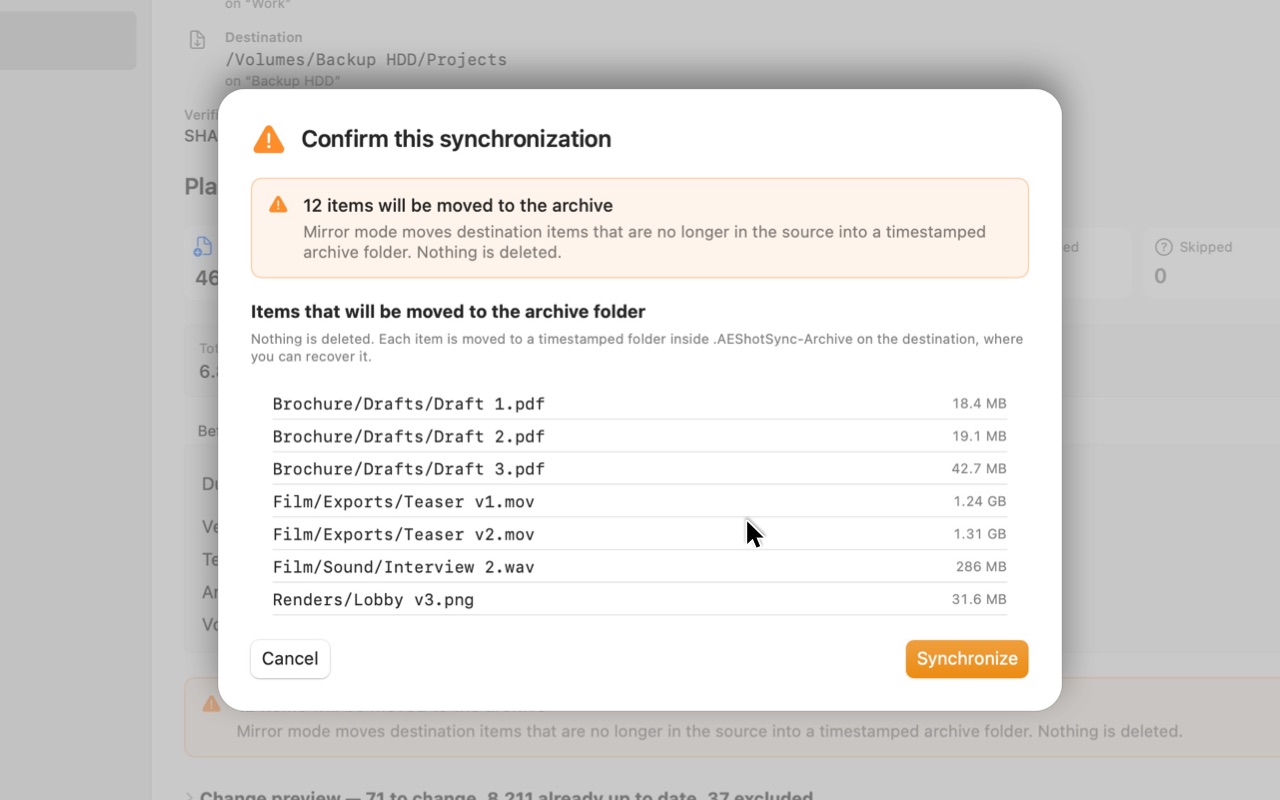
  3. Under Mode, choose Mirror. Items that are no longer in the source are moved to an archive folder on the destination, not deleted.
  4. Click Save, then Analyze.
  5. Click Synchronize. A window lists the items that will move to the archive folder. Check them and confirm.
  6. If a lot would move, AEShot Sync asks you to type ARCHIVE to go on. The limits are under Mirror safety thresholds in the profile.

Run on a schedule

A scheduled run analyzes first and synchronizes only when nothing needs your OK. Otherwise it waits and notifies you.

Run on a schedule
  1. Select the profile and click Edit Profile in the toolbar.
  2. Select the profile and click Edit profile (Ctrl+E).
  3. Under Schedule, choose when it runs: Every Few Hours, Daily, Weekly or When the Drive Is Connected.
  4. Under Schedule, choose when it runs: Every few hours, Daily, Weekly or When the drive is connected.
  5. Set the hours, the time or the day, and click Save.
  6. The first time, AEShot Sync asks whether to keep running for schedules. Click Keep Running: schedules run while AEShot Sync runs in the menu bar.
  7. The first time, AEShot Sync asks whether to keep running for schedules. Click Keep running: schedules run while AEShot Sync runs in the notification area.
  8. On Linux, schedules run even when AEShot Sync is closed, as long as you are signed in.

Get a file back from the archive

Mirror never deletes: what it takes out of the destination waits in a hidden archive folder there, until you delete it.

  1. Choose Synchronize › Partial Files, Archives and Validation… (⇧⌘T).
  2. Click Tools (Ctrl+Shift+T).
  3. Select Mirror Archives.
  4. Select Mirror archives.
  5. Select a run and click Reveal in Finder.
  6. Select a run and click Show in File Explorer.
  7. Select a run and click Show in File Manager.
  8. The files keep their folders inside. Move the file back, and put it in the source too, or the next Mirror run archives it again.
  9. To free space, select an old run, click Delete Selected Run and type DELETE ARCHIVE.
  10. To free space, select old runs, click Delete selected runs and type DELETE ARCHIVE.

Use cloud folders

AEShot Sync copies between folders on your computer. A cloud folder works as source or destination, and the cloud app does the uploading.

  1. Choose a folder in iCloud Drive, OneDrive, Dropbox or Google Drive as the Source or Destination.
  2. Choose a OneDrive folder, or another cloud app’s folder, as the Source or Destination.
  3. Choose a Nextcloud, ownCloud, Dropbox or OneDrive folder, or an rclone mount, as the Source or Destination.
  4. Under Online-only files, choose Download and copy to fetch files that are only in the cloud, or Skip to leave them out.
  5. Under Online-only files in the source, choose Download and copy to fetch files that are only in the cloud, or Skip to leave them out.
  6. On Linux, AEShot Sync copies the files that are on your computer. It cannot tell files that are only online.
  7. Analyze and synchronize as usual. When the run ends, the files are on your computer, and the cloud app uploads them afterwards.

Clean up after an interrupted run

If a run stops, for example because a drive was unplugged, the file being written keeps a temporary name. Your existing copy is untouched.

  1. The next plan says so under Before you start.
  2. Choose Synchronize › Partial Files, Archives and Validation… (⇧⌘T).
  3. Click Tools (Ctrl+Shift+T).
  4. Select Partial Files, then click Select Old Leftovers.
  5. Select Partial files, then click Select old leftovers.
  6. Click Remove Selected and confirm. Only files that are certainly AEShot Sync’s are removed.
  7. Click Remove selected and confirm. Only files that are certainly AEShot Sync’s are removed.

Questions

Can AEShot Sync delete my files?

Not on its own. Update mode never removes anything. Mirror mode moves items that are no longer in the source to an archive folder on the destination, after you confirm the list. Deleting old archives is a separate, confirmed step.

What happens if I unplug the drive during a sync?

The file being written stays under its temporary name; your existing copy is untouched. Next time, AEShot Sync shows the leftover and offers to clean it up.

Does it work with external drives, SSDs, USB sticks and memory cards?

Yes. Any drive your computer can read and write, and also two folders on the same disk.

Does it sync both ways or to online services?

No. AEShot Sync copies one way. It can use the folders of cloud apps, such as iCloud Drive, OneDrive or Dropbox, as source or destination; their own apps do the uploading.

Does it need the internet?

No account, and syncing never needs the internet. AEShot Sync goes online only to look for updates and to count its installation anonymously. Your files never leave your computer.

No account, and syncing never needs the internet. On Linux, AEShot Sync goes online only to count its installation anonymously. Your files never leave your computer.

How do I uninstall it?

Quit AEShot Sync and move it from the Applications folder to the Trash.

Uninstall AEShot Sync from the list of installed apps in Windows Settings. Your profiles, settings and logs stay.

Remove the package: sudo apt purge aeshot-sync (Debian, Ubuntu), sudo dnf remove aeshot-sync (Fedora), sudo zypper remove aeshot-sync (openSUSE) or sudo pacman -R aeshot-sync (Arch). Delete your profiles first, or their schedules stay behind.

Where are its settings kept?

Profiles and run logs are in the app’s container: ~/Library/Containers/com.ckyr.AEShotSync. A Mirror archive is in .AEShotSync-Archive on the destination.

Profiles and settings are in %APPDATA%\AEShot Sync, run logs in %LOCALAPPDATA%\AEShot Sync\Logs. A Mirror archive is in .AEShotSync-Archive on the destination.

Profiles and settings are in ~/.config/AEShot Sync, run logs in ~/.local/share/AEShot Sync/Logs. A Mirror archive is in .AEShotSync-Archive on the destination.

What does it need to run?

macOS 14 or later, on Apple silicon or Intel.

Windows 10 (version 2004) or later, 64-bit.

64-bit Linux with systemd. KDE Plasma 6 is recommended; other desktops work too.

What about my privacy?

Your files stay on your computer and nothing about them is sent anywhere. The privacy policy has the details.

Which languages?

English, German, French, Spanish, Italian, Portuguese (Brazil), Japanese, Korean and Chinese (Simplified and Traditional).

How do I report a problem?

Questions, a problem, or an idea for AEShot Sync? Write to support@aeshot.com. Please include your system version, the AEShot Sync version (shown in its About window), and, for a problem with a run, its run log.

Still stuck? Email support@aeshot.com, or see AEShot Support for downloads and installing at work.