AEShot

AEShot PDF Help

Edit, sign and organize your PDFs, step by step.

Getting started

Install

Open the disk image you downloaded and drag AEShot PDF to the Applications folder.

Run the installer you downloaded. It installs AEShot PDF for your account, without administrator rights, and adds it to the Start menu.

Choose the package for your Linux under Download on the AEShot PDF page and install it with the command shown there.

If Edge or Windows warns because the installer isn’t code-signed yet, here is what to do.

First launch

The Welcome Guide opens the first time: open a PDF, create your signature or click Try a Sample. Help › Welcome Guide shows it again.

Permissions

AEShot PDF needs no special permissions. To sign with a smart card or a USB token, you are asked for its PIN.

AEShot PDF needs no special permissions. To sign with a smart card or a USB token, you are asked for its PIN. Recognize Text needs Tesseract.

Where to find it

AEShot PDF is in the Applications folder and the Dock. To open PDFs in it when you double-click them, click Use AEShot PDF in Settings › General › Default PDF app.

AEShot PDF is in the Start menu. To open PDFs in it when you double-click them, click Choose in Windows Settings in File › Settings › General › Default PDF app and choose AEShot PDF for .pdf.

AEShot PDF is in your application menu. To open PDFs in it when you double-click them, click File Associations… in File › Settings › General › Default PDF app.

Updates

AEShot PDF looks for a new version about a minute after it starts, then once a day. When one is out, a window shows what’s new. Click Update: it downloads the update, checks its signature, installs it and opens again, and your settings and documents stay. A critical update reminds you until it’s installed. To look now, choose Check for Updates… in the AEShot PDF menu, under About AEShot PDF, or click Check Now in Settings › General › Updates, which also has Check for updates automatically. AEShot PDF 1.0 can’t update itself: install 1.0.1 or later once from the AEShot PDF page.

AEShot PDF looks for a new version about a minute after it starts, then every hour. When one is out, a window shows what’s new. Click Update: it downloads the update, checks its signature, installs it and opens again, and your settings and documents stay. A critical update reminds you until it’s installed. To look now, choose Check for Updates… in the Help menu, or click Check Now in Settings › General › Updates, which also has Check for updates automatically. AEShot PDF 1.0.0 can’t update itself: install 1.0.1 or later once from the AEShot PDF page.

On Linux, AEShot PDF looks for a new version about a minute after it starts, then once a day. When one is out, a window shows what’s new. Click Update: it downloads the update, checks its signature, installs it with your system’s package manager (apt, dnf, zypper or pacman) after asking for your password, and opens again; your settings and documents stay. A critical update reminds you until it’s installed. To look now, choose Check for Updates… in the Help menu, or click Check Now in Settings › General › Updates, which also has Check for updates automatically. A copy not installed from the packages on aeshot.com only shows Download. Versions before 1.0.1 can’t do this yet: install the newer package from the AEShot PDF page once.

Installation ID and reviews

Settings › General shows this installation’s Installation ID with Copy, and Write a Review on aeshot.com opens the review page with it filled in. Reviews need Count this installation turned on. How reviews work

You can also write one in the app: choose Write a Review… in the AEShot PDF menu.

You can also write one in the app: choose Help › Write a Review….

Step by step

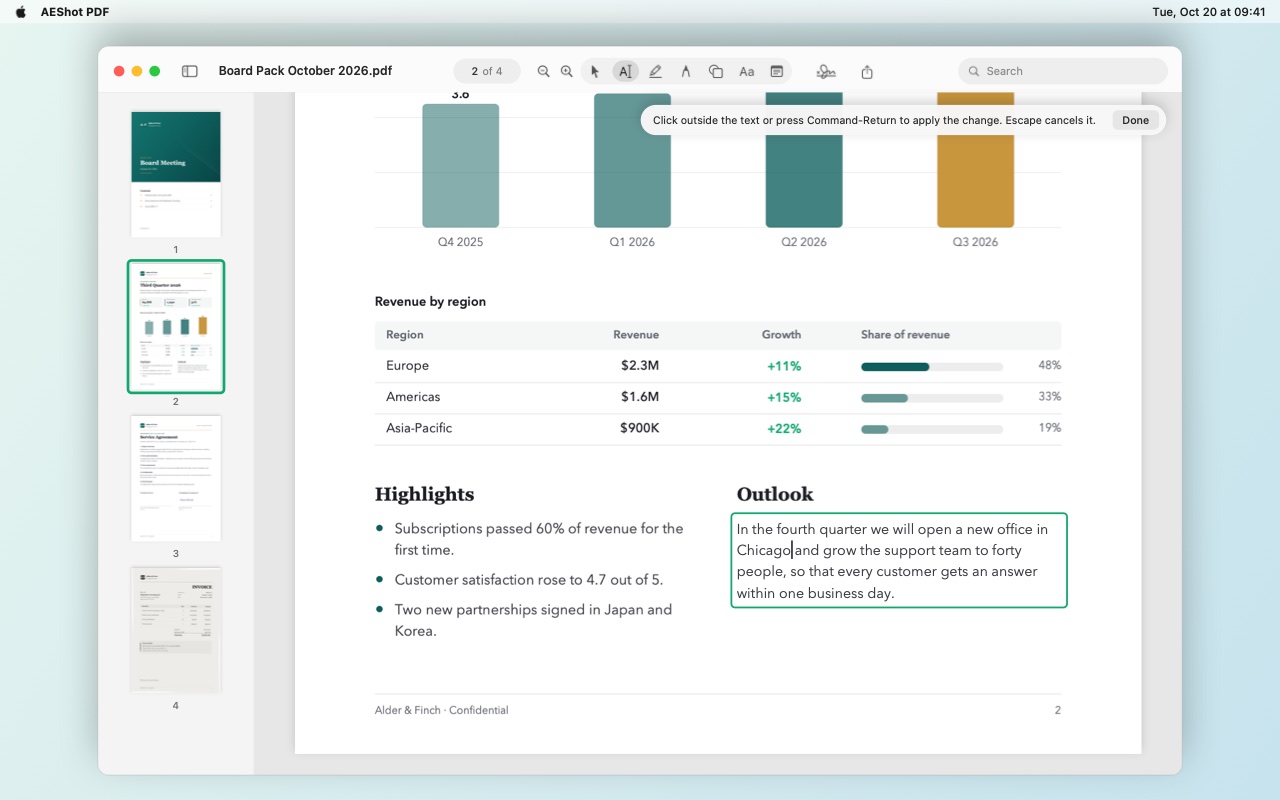
Edit text

Change the words in a PDF; the font, size and color stay.

Edit text
  1. Click Edit Text in the toolbar, or press ⌃⌘E.
  2. Click Edit Text in the toolbar, or press Ctrl+Shift+E.
  3. Paragraphs light up under the pointer. Click one.
  4. Type your change. The lines rewrap as you type.
  5. Click elsewhere or press ⌘Return to apply it, or Esc to cancel. ⌘Z undoes it.
  6. Click elsewhere or press Ctrl+Enter to apply it, or Esc to cancel. Ctrl+Z undoes it.
  7. Text in pictures, in form fields or in scans can’t be edited this way.

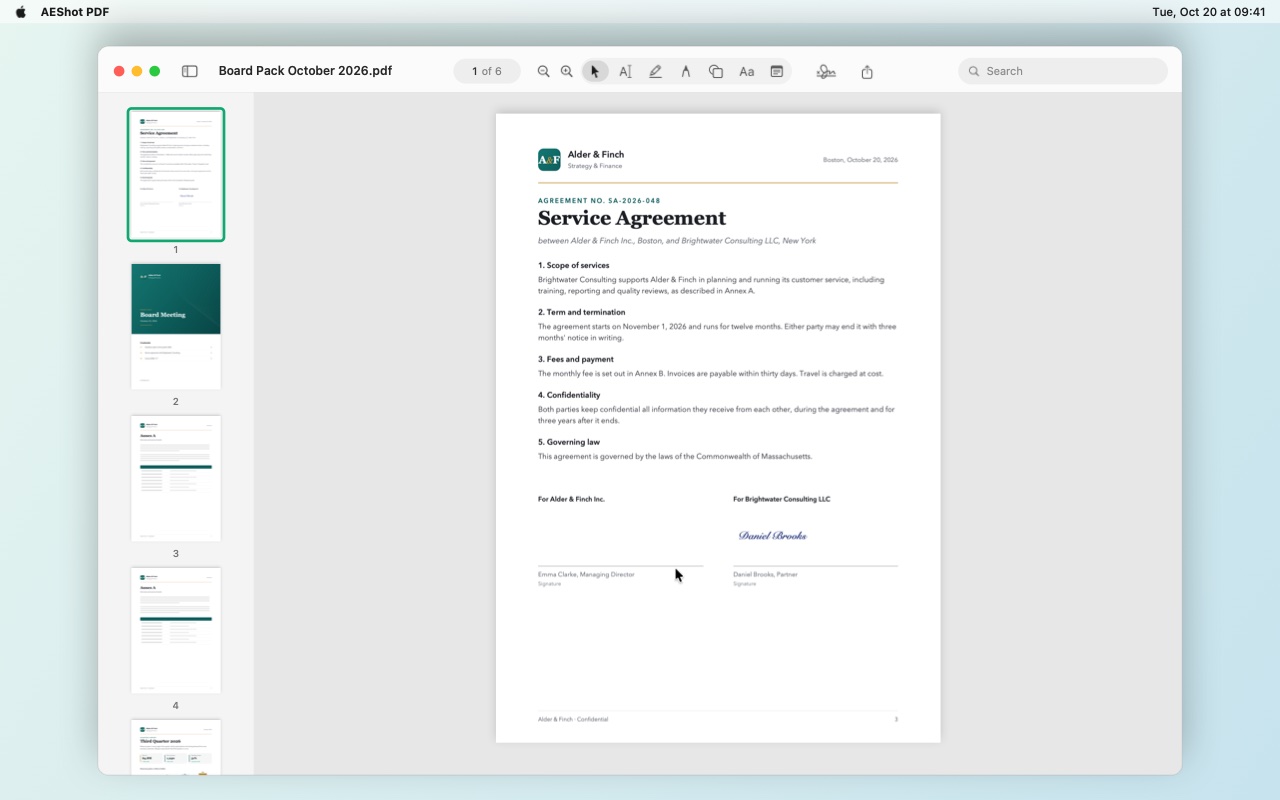
Sign with your signature

Draw it, type it or use a photo of it, once, and place it wherever you need.

Sign with your signature
  1. Click Sign in the toolbar and choose New Signature….
  2. Choose Draw, Type or Picture: sign, type your name, or choose a photo of your signature on white paper.
  3. Click Save.
  4. Choose the signature under Sign and click the page. Drag it to move it, or a corner to resize it.
  5. Your signatures are kept encrypted in your Mac’s keychain. Sign › Manage Signatures… removes one.
  6. Your signatures are kept on this PC, encrypted for your Windows account. Sign › Remove a Saved Signature removes one.
  7. Your signatures are kept on this computer, encrypted with a key in KWallet or GNOME Keyring. Sign › Remove a Saved Signature removes one.

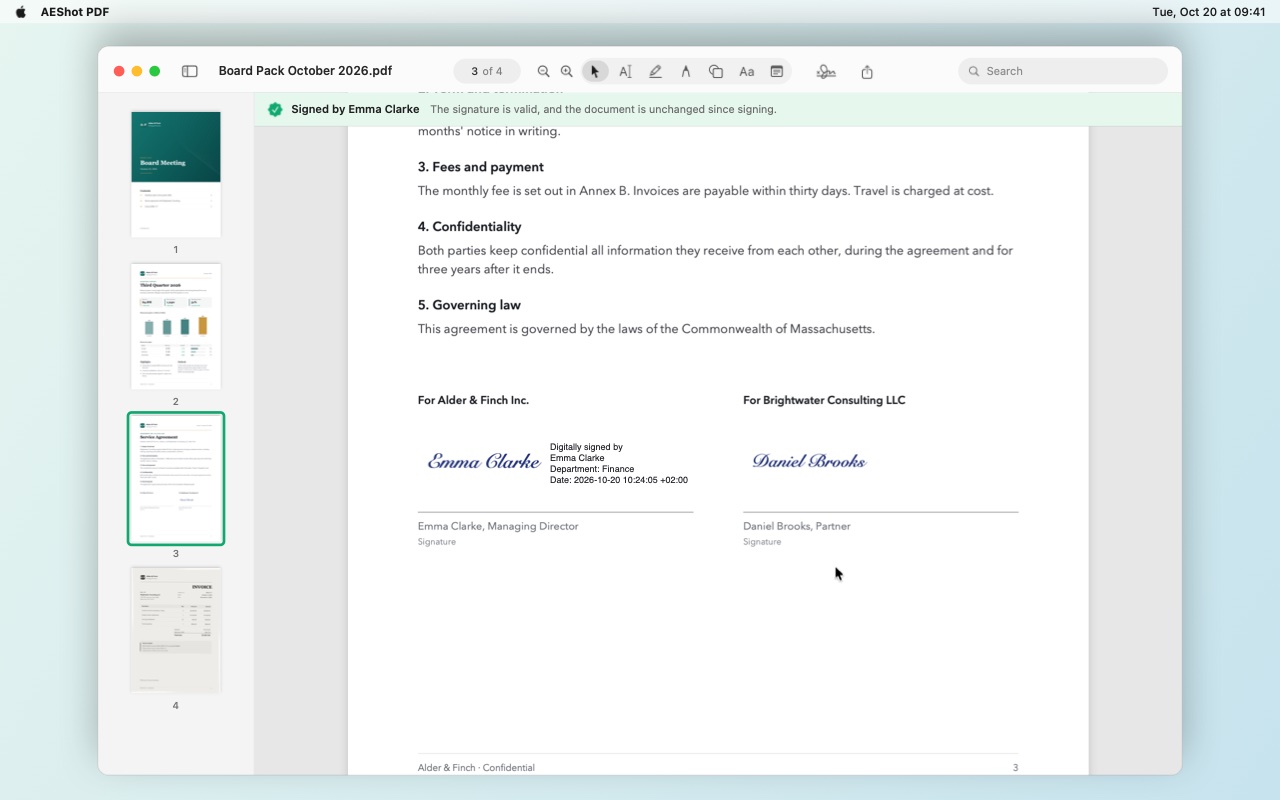
Sign with a certificate

A digital signature shows who signed and that nothing changed since.

  1. Choose Tools › Sign with Certificate… (⌃⌥⌘S).
  2. Click Sign in the toolbar and choose Sign with Certificate….
  3. Under Certificate, choose one from your keychain or smart card. Or click Open Certificate File… for a .p12 file, or Create My Certificate… to make one.
  4. Under Certificate, choose one from Windows or your smart card. Or click Open Certificate File… for a .p12 file, or Create My Certificate… to make one.
  5. Under Certificate, choose one from your smart card or USB token. Or click Open Certificate File… for a .p12 file, or Create My Certificate… to make one.
  6. Choose what the signature shows, such as your name and the date, and whether to add a timestamp.
  7. Click Place Signature… and drag a box on the page. The document is signed at once.

Organize pages

Reorder, rotate, delete and insert pages in the sidebar.

Organize pages
  1. Show the sidebar with ⌃⌘S.
  2. Show the sidebar with the sidebar button in the toolbar.
  3. Select pages. ⌘-click or Shift-click selects several.
  4. Select pages. Ctrl+click or Shift+click selects several.
  5. Drag them to their new place.
  6. Rotate them with ⌘L or ⌘R, or delete them with the Delete key.
  7. Rotate them with Ctrl+L or Ctrl+R, or delete them with the Delete key.
  8. Right-click for more: insert a blank page or pages from a file, duplicate pages, or extract them to a new document.

Combine files

Turn several PDFs and pictures into one document.

  1. Choose File › Combine Files… (⌥⌘K).
  2. Choose File › Combine Files….
  3. Select the PDFs and pictures to combine.
  4. They are added in the order of their names, and the new document opens.
  5. The new document is saved as you go.
  6. Save it with Ctrl+S.
  7. To add files to an open document, drag them into the sidebar, between the pages.

Fill in a form

Type into the fields of a PDF form, or onto the lines of one without fields.

  1. Click a light-blue field and type. Tab moves to the next field.
  2. Tick the checkboxes and choose from the lists the same way.
  3. No fields? Use the Text tool to type on the lines.
  4. To make your entries part of the page, choose File › Flatten Annotations and Form Fields….

Recognize text in a scan

Make a scanned PDF searchable, so you can find, select and copy its text.

Recognize text in a scan
  1. Open a scanned PDF. A bar above it offers Recognize Text; click it, or choose Tools › Recognize Text.
  2. AEShot PDF reads every page. Then you can search, select and copy the text.
  3. The text is recognized on your Mac. ⌘Z undoes it.
  4. Windows recognizes the languages installed for your account; to add one, go to Settings › Time & language › Language & region. Ctrl+Z undoes it.
  5. Linux needs Tesseract and the data for your language, for example the package tesseract-ocr-deu. Ctrl+Z undoes it.

Highlight and mark up

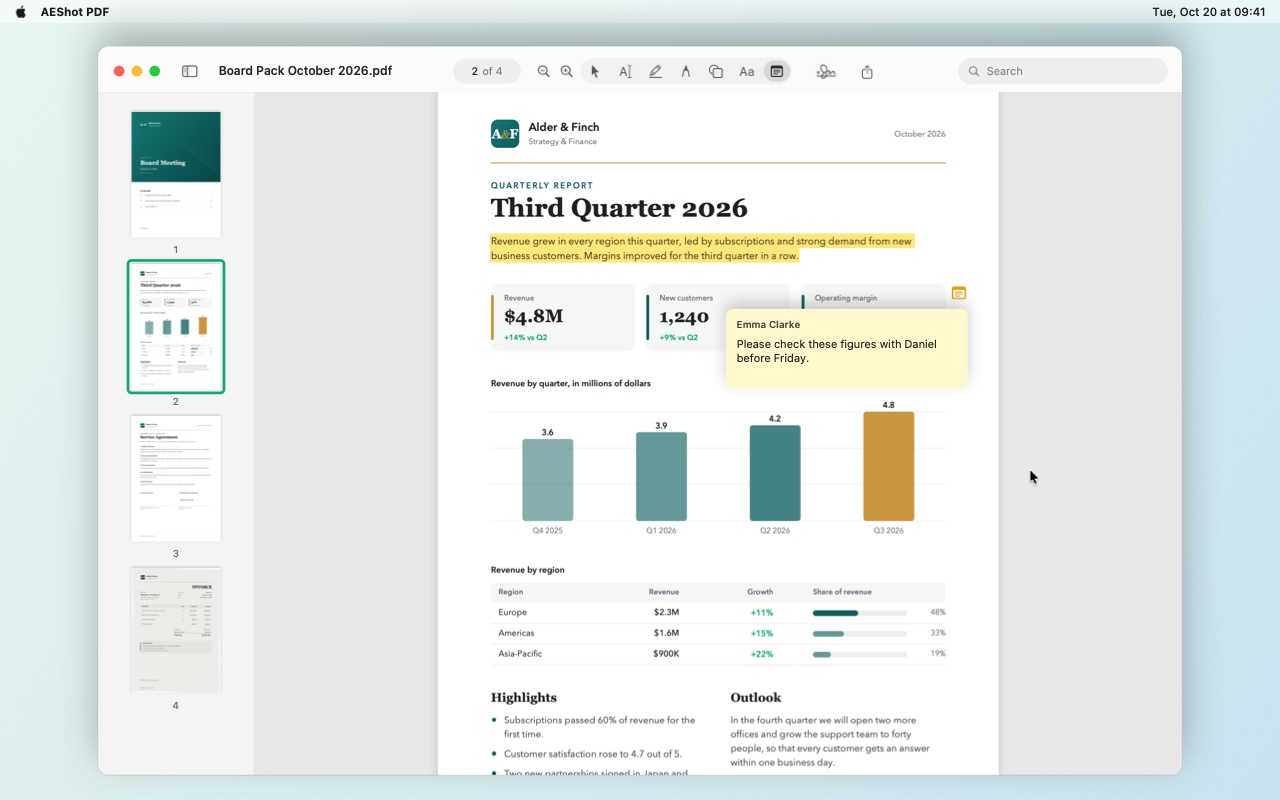
Highlight, draw, add shapes, text and notes.

Highlight and mark up
  1. Choose a tool in the toolbar, such as Highlight, Draw, a shape, Text or Note.
  2. Set its color and line width or text size.
  3. Drag over text to highlight it, or drag on the page to draw. For text, click and type.
  4. To change a mark later, click it with the Select tool: drag to move it, drag a corner to resize it, or press Delete to remove it.

Questions

How do I save my changes?

AEShot PDF saves as you go. File › Revert To brings back an earlier version, and File › Duplicate makes a copy.

Choose File › Save (Ctrl+S), or Save As… (Ctrl+Shift+S) for a copy. AEShot PDF asks before closing a document with changes.

How do I uninstall it?

Quit AEShot PDF and move it from the Applications folder to the Trash.

Uninstall AEShot PDF from the list of installed apps in Windows Settings. Your settings and signatures stay.

Remove the package: sudo apt purge aeshot-pdf (Debian, Ubuntu), sudo dnf remove aeshot-pdf (Fedora), sudo zypper remove aeshot-pdf (openSUSE) or sudo pacman -R aeshot-pdf (Arch).

Where are its settings kept?

In the app’s container, ~/Library/Containers/com.ckyr.AEShotPDF. Your signatures are in your keychain.

In %APPDATA%\AEShot PDF, together with your encrypted signatures.

Settings are in ~/.config/AEShot PDF, your encrypted signatures in ~/.local/share/AEShot PDF.

What does it need to run?

macOS 14 or later, on Apple silicon or Intel.

Windows 10 (version 2004) or later, 64-bit.

64-bit Linux. KDE Plasma 6 is recommended; other desktops work through their portals. Recognize Text needs Tesseract.

What about my privacy?

Your documents stay on your computer and are never uploaded. The privacy policy has the details.

Still stuck? Email support@aeshot.com, or see AEShot Support for downloads and installing at work.